Introduction
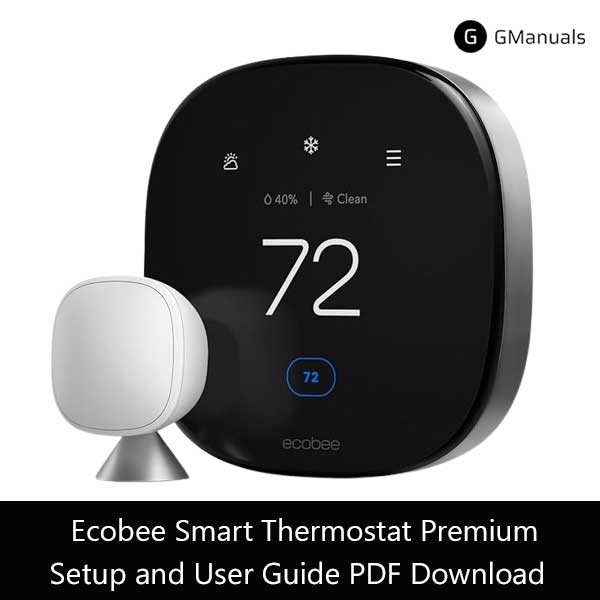
Welcome to the ultimate guide for your Ecobee Smart Thermostat Premium (model EB-STATE6). This top-tier smart thermostat is designed to deliver unparalleled comfort, energy savings, and smart home integration. With advanced features like a built-in air quality sensor, a smart speaker, and enhanced occupancy detection, the Ecobee Smart Thermostat Premium goes beyond basic climate control. This guide will walk you through everything from initial setup and daily operation to advanced features, maintenance, and troubleshooting common issues.
1. Unboxing and What's Included
Before you begin installation, ensure all components are present in your Ecobee Smart Thermostat Premium box:
- Ecobee Smart Thermostat Premium (EB-STATE6)
- Backplate
- Mounting screws and drywall anchors
- Trim plate (optional, for covering old thermostat marks)
- Power Extender Kit (PEK) (if no C-wire is present)
- Ecobee SmartSensor (with stand and adhesive)
- Installation Guide
- Wire labels
2. Installation: Step-by-Step Guide
Installing your Ecobee Smart Thermostat Premium is a straightforward process, but it's crucial to follow these steps carefully to ensure proper functionality and safety. If you are uncomfortable with electrical wiring, please consult a qualified HVAC professional.
2.1 Pre-Installation Checklist
- Turn off power: Crucially, turn off the power to your HVAC system at the breaker box. Verify it's off by trying to adjust your old thermostat.
- Check compatibility: Ecobee Smart Thermostat Premium requires a C-wire (common wire) for continuous power. If you don't have one, you'll need to install the included Power Extender Kit (PEK). Most 24VAC systems are compatible.
- Take a picture of old wiring: Before disconnecting anything, take a clear photo of your old thermostat's wiring. This is your essential reference.
2.2 Removing Your Old Thermostat
- Label wires: Carefully label each wire with the provided labels (or your own tape) as you disconnect them from your old thermostat's terminals.
- Remove base plate: Unscrew and remove the old thermostat's base plate from the wall.
2.3 Installing the Ecobee Smart Thermostat Premium Backplate
- Thread wires: Pull the wires through the center opening of the Ecobee backplate.
- Mount the backplate: Use the provided screws and drywall anchors to securely mount the backplate to your wall. Ensure it's level.
2.4 Connecting the Wires (with or without PEK)
- With C-wire: Connect the labeled wires to the corresponding terminals on the Ecobee backplate. For example, if your old R wire was connected to R, connect it to R on the Ecobee backplate. Connect your C-wire to the C terminal.
- Without C-wire (using PEK): Follow the detailed instructions in the Ecobee installation guide for wiring the Power Extender Kit at your furnace/air handler. Then, connect the wires to the Ecobee backplate as instructed.
2.5 Attaching the Ecobee Smart Thermostat Premium Display
- Align and push: Gently push the Ecobee display onto the backplate until it clicks into place.
2.6 Power On and Initial Setup
- Restore power: Turn the power back on at your breaker box.
- Follow on-screen prompts: The Ecobee Smart Thermostat Premium will power on and guide you through the initial setup, including:
- Language selection
- Wi-Fi connection
- HVAC system configuration (heating, cooling, fan, accessories)
- Location and time zone
- Registering your thermostat with the Ecobee app.
3. Using Your Ecobee Smart Thermostat Premium: Daily Operation & Features
Your Ecobee Smart Thermostat Premium is designed for intuitive control and smart energy management, with enhanced features.
3.1 Basic Controls
- Adjusting Temperature: Swipe up or down on the screen to adjust the set temperature.
- Accessing Menu: Tap the menu icon (three horizontal lines) to open the main menu.
3.2 Understanding Modes
- Heat: Heats your home to the set temperature.
- Cool: Cools your home to the set temperature.
- Auto: Automatically switches between heating and cooling to maintain a temperature range.
- Off: Turns off your HVAC system.
3.3 Scheduling and Smart Features
- Schedules: Create custom schedules for different times of day and days of the week via the thermostat or the Ecobee app.
- Home & Away: Uses geofencing (via your phone) and the included SmartSensor to automatically switch to energy-saving settings when you leave and return.
- Follow Me/Smart Home/Away: Uses occupancy sensors (including the SmartSensor) to deliver comfort where it matters most.
- Vacation Mode: Set specific temperatures for extended periods when you're away.
3.4 Advanced Features
- Built-in Smart Speaker: Integrated speaker with Alexa built-in for voice control, music playback, and smart home commands.
- Air Quality Sensor: Monitors indoor air quality and provides insights. Can be set to run your fan to improve air circulation.
- Radar Occupancy Sensor: More advanced occupancy detection for better accuracy in determining home/away status.
- Ecobee SmartSensor: Included sensor extends temperature sensing and occupancy detection to another room.
3.5 Energy Saving Features
- Energy Reports: Access detailed energy reports via the Ecobee app to see how much energy you're using and identify savings opportunities.
- Community Comparisons: See how your energy usage compares to similar homes in your area.
- Smart Recovery: Learns how long it takes to reach your desired temperature and starts heating/cooling early to ensure comfort at the scheduled time.
4. Essential Cleaning and Maintenance
Regular cleaning is paramount to prevent mold, mildew, and mineral buildup, which can affect ice quality and machine performance. GE recommends cleaning/sanitizing your Opal once per week.
4.1 Exterior Cleaning
- Unplug the unit.
- Use a soft cloth dampened with soapy water to gently clean exterior surfaces. Dry thoroughly.
- For stainless steel surfaces, use a commercial stainless steel cleaner, rubbing in the direction of the brush lines.
4.2 Internal System Cleaning / Sanitizing Procedure
This procedure is crucial for preventing buildup and ensuring clean ice. Refer to your manual for specific instructions, but generally:
- Unplug the Opal.
- Remove the water filter (if present) and replace it with the reservoir’s screened intake cap.
- Drain the Opal completely (see manual for drain hose location and procedure).
- Prepare a cleaning solution: typically five cups of water and one teaspoon of household bleach, or use the Opal Cleaning Kit.
- Pour the solution into the water reservoir.
- Plug in the Opal and hold the ‘Clean’ button for 3 seconds to initiate the cleaning process. The ‘Cleaning’ indicator will light up.
- After the cleaning cycle (usually 3 minutes), drain the unit again.
- Rinse the system by adding fresh water and running another cleaning cycle (without bleach/cleaner), then drain.
4.3 Descaling for Hard Mineral Deposits
If you have hard water, mineral deposits can build up. For this, a vinegar solution is often recommended:
- Fill the reservoir with hot (100-120°F) white vinegar up to the max fill line.
- Run up to three cleaning cycles with the vinegar solution.
- Leave the vinegar in the unit for a period (e.g., 30 minutes to an hour) to dissolve stubborn deposits.
- Drain the unit thoroughly and rinse with fresh water by running several cleaning cycles.
5. Troubleshooting Common Ecobee Smart Thermostat Premium Issues
Here are solutions to some common problems you might encounter with your Ecobee Smart Thermostat Premium.
5.1 Ecobee Thermostat Won't Turn On / No Power
- Check breaker: Ensure the power to your HVAC system is on at the breaker.
- Check wiring: Verify all wires are securely connected to the correct terminals on the Ecobee backplate and at the furnace/air handler (especially if using PEK).
- C-wire/PEK: Ensure the C-wire is properly connected or the Power Extender Kit is correctly installed and wired.
- Blown fuse: Your HVAC system's control board might have a blown fuse. Consult an HVAC professional.
5.2 Wi-Fi Connection Issues / Keeps Disconnecting
- Router proximity: Ensure your Wi-Fi router is close enough to the thermostat.
- Restart router: Power cycle your Wi-Fi router and modem.
- Restart Ecobee: Go to Main Menu > Settings > Reset > Restart Thermostat.
- Check Wi-Fi interference: Other devices might be interfering with the signal.
- Network settings: Ensure your Wi-Fi network is 2.4GHz (Ecobee does not support 5GHz).
5.3 Heating/Cooling Issues (Not Heating/Cooling Properly)
- Check mode: Ensure the thermostat is in the correct mode (Heat, Cool, or Auto).
- Schedule conflicts: Check your schedule for unintended temperature changes.
- HVAC system issues: The problem might be with your HVAC system itself (e.g., clogged filter, low refrigerant, faulty furnace).
- System settings: Verify your HVAC system type is correctly configured in the Ecobee settings.
5.4 Incorrect Temperature Readings
- Thermostat placement: Ensure the thermostat is not in direct sunlight, near heat sources, or in a drafty area.
- Room sensors: If using external room sensors, ensure they are placed optimally and not obstructed.
- Recalibration: Sometimes a factory reset can help recalibrate sensors.
5.5 Smart Speaker / Voice Assistant Issues
- Microphone Muted: Check if the microphone is muted on the thermostat or in the Ecobee app.
- Internet Connection: Ensure a stable Wi-Fi connection for voice assistant functionality.
- Account Linking: Verify your Alexa account is correctly linked in the Ecobee app.
- Restart: Try restarting the thermostat and your router.
5.6 Air Quality Sensor Issues
- Dust/Obstruction: Ensure the sensor area on the thermostat is clean and not obstructed.
- Placement: Consider if the thermostat's location is representative of your home's overall air quality.
- Recalibration: A factory reset might help recalibrate the sensor.
5.7 Error Codes
Ecobee thermostats can display various error codes. Here are some common ones and what they might indicate:
- E1/E2/E3: Often related to wiring issues or problems with the HVAC system. Double-check wiring and power.
- E20/E21: Wi-Fi connection errors. Check your network settings and router.
- E23/E24: Sensor errors. Could indicate an issue with the internal temperature sensor or an external room sensor.
For a full list of error codes and detailed troubleshooting, refer to the official Ecobee support website.
Download Ecobee Smart Thermostat Premium (EB-STATE6) Manual
| Brand | Ecobee |
| Model | Smart Thermostat Premium |
| Category |
Thermostat |
| File Size | 10 MB |
| Pages | 141 Pages |
| Language | English |
| 994 views | |
6. Frequently Asked Questions (FAQ)
What makes the Ecobee Smart Thermostat Premium different from other Ecobee models?
The Ecobee Smart Thermostat Premium stands out with its built-in air quality sensor, integrated smart speaker with Alexa, more advanced radar occupancy sensor, and a premium design. It also includes an Ecobee SmartSensor in the box, offering enhanced comfort and energy savings compared to the Lite or Enhanced models.
Does the Ecobee Smart Thermostat Premium require a C-wire?
Yes, like most Ecobee models, the Smart Thermostat Premium requires a C-wire (common wire) for continuous power. If your home's wiring does not have a C-wire, the included Power Extender Kit (PEK) can be installed at your furnace or air handler to provide the necessary power.
Can I use the built-in smart speaker for music or calls?
Yes, the Ecobee Smart Thermostat Premium's built-in smart speaker functions like a regular Alexa-enabled device. You can use it to play music from supported streaming services, make calls, set timers, get news updates, and control other smart home devices using voice commands.
How does the air quality sensor work?
The integrated air quality sensor monitors volatile organic compounds (VOCs) and carbon dioxide (CO2) levels in your home. It provides real-time readings and historical data through the Ecobee app. You can set it to automatically run your HVAC fan to circulate air and improve indoor air quality when levels are high.
Is the Ecobee Smart Thermostat Premium compatible with Apple HomeKit?
Yes, the Ecobee Smart Thermostat Premium is compatible with Apple HomeKit, allowing you to control your thermostat using the Apple Home app or Siri voice commands. It also integrates with Google Assistant and Samsung SmartThings.
Conclusion
Your Ecobee Smart Thermostat Premium is a comprehensive smart home solution, offering advanced climate control, air quality monitoring, and voice assistant capabilities. By understanding its features, proper installation, and troubleshooting tips, you can maximize its benefits for comfort, energy savings, and a healthier home environment. Remember to utilize the Ecobee app for remote control and energy insights. If you encounter persistent issues, always refer to the official Ecobee support resources or consult a qualified HVAC professional.
Disclaimer: This guide provides general information. Always refer to your specific Ecobee Smart Thermostat Premium model's official manual for detailed instructions and safety warnings. Professional installation is recommended for complex wiring or HVAC systems.